Chapter 8
AI - Artificial Intelligence
AI-Powered Layout Automation & Scripting
Transform natural language into GDSII/OASIS geometry, automate DRC rules, and integrate AI agents directly into your EDA workflow.
Next Steps & Integrations
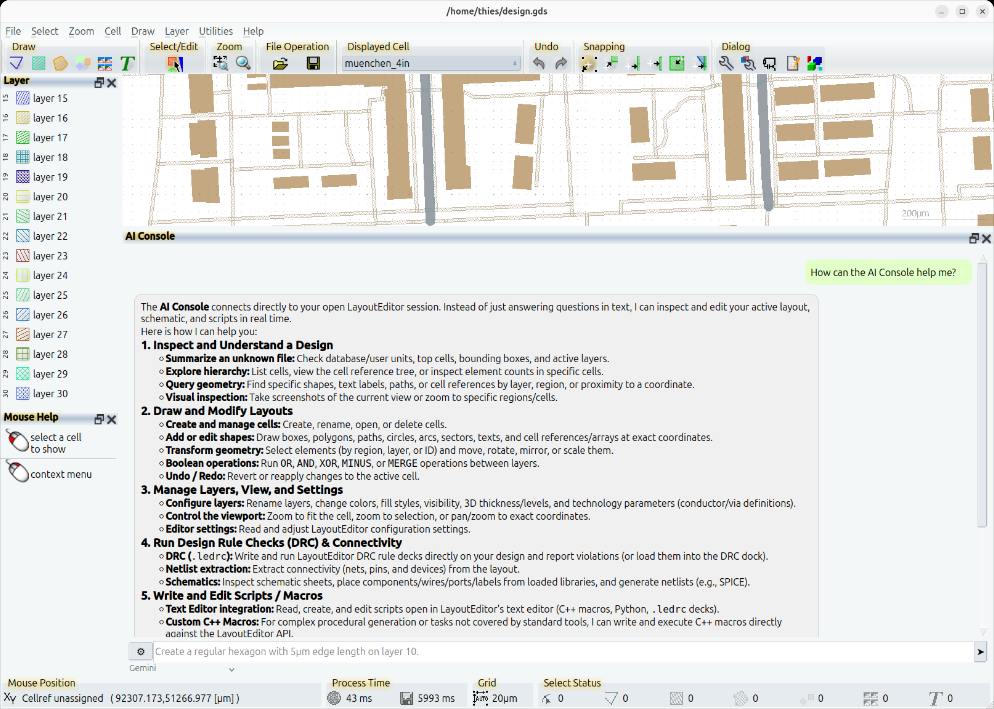
Open the console under the drawing and ask in ordinary language.
Add an API key, or connect a model that runs on this computer, such as Ollama.
🤖 MCP & Agent Integration (Cursor, Claude) →
Connect LayoutEditor to external AI agents via the Model Context Protocol (MCP) for fully autonomous EDA workflows. Cursor, Claude Desktop and Claude Code start the editor on this computer. No port is opened.
Local AI & Privacy First
We understand that proprietary chip designs and layout geometries are strictly confidential.
- 100% Local LLM Support: Connect LayoutEditor to local models via Ollama, a local llama.cpp server, or another server on this computer. While that address stays on this computer, the chat is not sent to a provider.
- Flexible Cloud APIs: Optionally connect to external APIs such as OpenAI, Anthropic and DeepSeek with your own API key. You choose the address, and you choose whether that model may see the design.
© 2026 juspertor GmbH