Other Programs
Let another chat drive the editor
Cursor, Claude Desktop and Claude Code can start the LayoutEditor and ask it to open a design, answer a question from this manual, or change the layout. You keep chatting in the program you already use. The LayoutEditor does the drawing. This connection is called MCP.
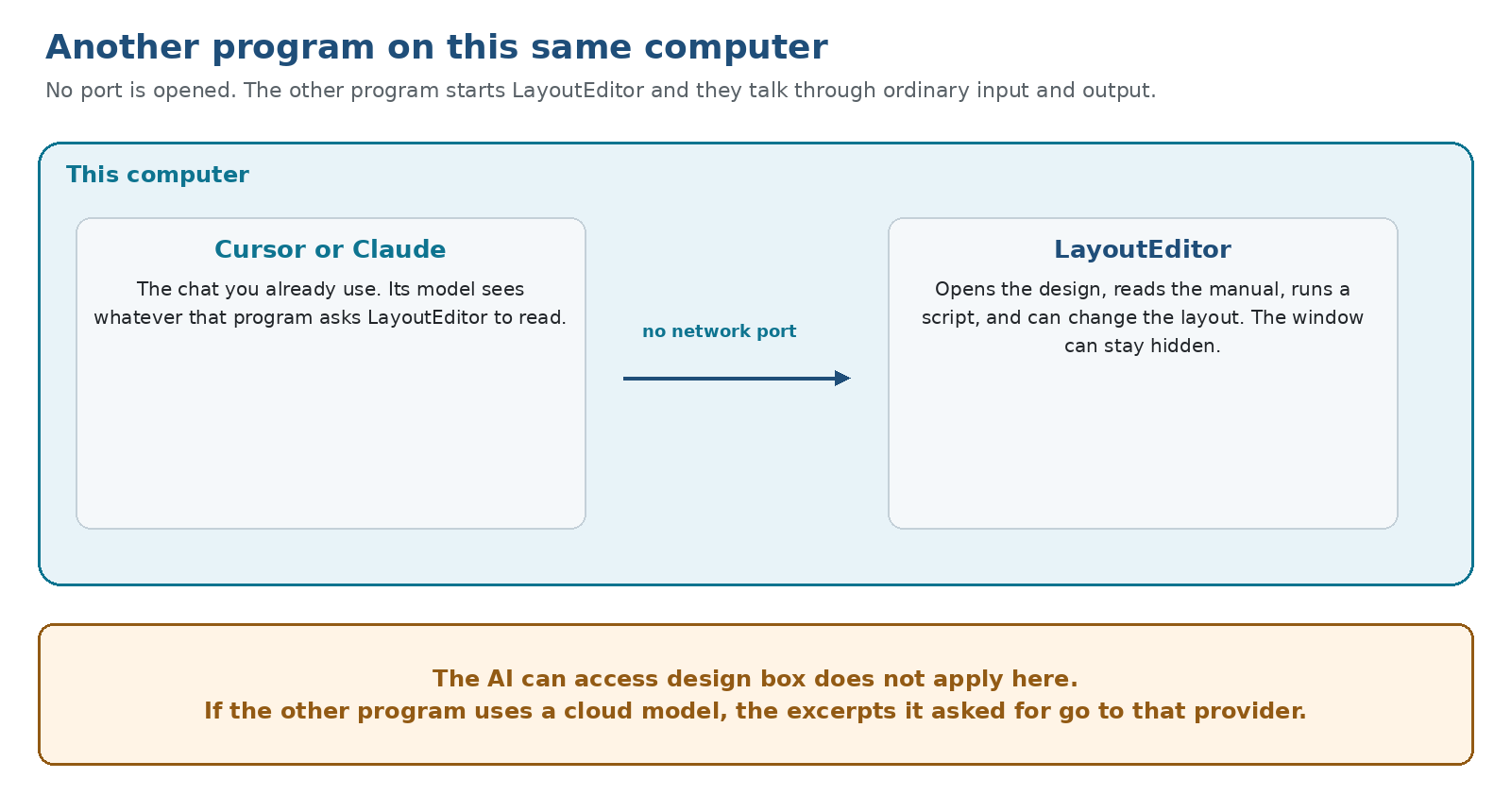 The LayoutEditor is the program that answers, and the other program is the one that asks.
Nothing is listening on a network port. The other program starts the LayoutEditor on this computer and they talk through the ordinary input and output of that process. Quit the other program, or remove the entry below, and the LayoutEditor is no longer started this way. On its own, with no extra switch, the LayoutEditor behaves as before and accepts no such connection.
The connection starts with any license, including none. A full license is required to read or change the layout and to run a macro. Without it those requests answer that a full license is required. The manual, the text editor, settings, the view, the netlist, the schematic and the 3D editor stay available.
What that chat can see
This path does not use the box AI can access design from Language Models. The connected program can ask for cells, shapes, screenshots, the netlist and the other design tools, and the answers are handed to that program. From there they go to whatever model that program is using.
If that model is a cloud model, the excerpts the assistant asked for leave this computer and go to that provider. If that model runs on this computer, the excerpts stay here, subject to the same limit as any local program: they stay here only while that program does not forward them. When a design must not be described to an outside model, do not add this connection, or point the other program at a model that runs locally.
The AI Console inside the LayoutEditor is a different door. Its LayoutEditor assistant still sees only the chat, and a model you added there still obeys AI can access design. Connecting Cursor or Claude does not change those settings, and those settings do not limit Cursor or Claude.
Show the window, or leave it hidden
The other program starts the LayoutEditor. You do not need to open it yourself first. With only --mcp, the window stays hidden and the work happens in the background. Add --mcpgui as well when you want to watch the layout change. On Windows, a double-click of layout.exe does not create this connection. The other program has to start it, because only then is there a channel to talk through. On macOS the command has to be the program inside the application bundle, not the LayoutEditor.app icon.
How to connect it
Each of the three programs accepts the same text. command is the LayoutEditor program on this computer. args is the list of switches. Use --mcp alone for a hidden window, or --mcp and --mcpgui when the window should be visible. Replace the path with the one on your machine.
On Linux, command is the layout program from your installation, or the AppImage. The AppImage start script must not write anything else to the output, or the chat connection breaks.
{
  "mcpServers": {
    "layouteditor": {
      "command": "/path/to/layout",
      "args": ["--mcp"]
    }
  }
}
On Windows the path uses escaped backslashes, because this text is JSON.
{
  "mcpServers": {
    "layouteditor": {
      "command": "C:\\path\\to\\layout.exe",
      "args": ["--mcp"]
    }
  }
}
On macOS, command points inside the bundle.
{
  "mcpServers": {
    "layouteditor": {
      "command": "/Applications/LayoutEditor.app/Contents/MacOS/layout",
      "args": ["--mcp"]
    }
  }
}
To watch the window, put both switches in args, first --mcp and then --mcpgui, in any of the three examples.
Cursor reads this from .cursor/mcp.json in the project, or from its user configuration. Claude Desktop uses the same mcpServers block in its configuration. Claude Code accepts the same block. After you save it, start a new chat in that program and ask it to do something small, such as listing the cells of the open design, so you can see that the connection is alive. The requests it can make are the same kind of work the console does: read the manual, run a script, and, because this path is not limited by AI can access design, read and change the design.
© 2026 juspertor GmbH